A Halcyone Maker field guide
Make a vertical 3D animation for Shorts or TikTok
A wave can fit in a vertical frame while the walk leading up to it slips off one side. Set the shape first and check both ends of the movement.
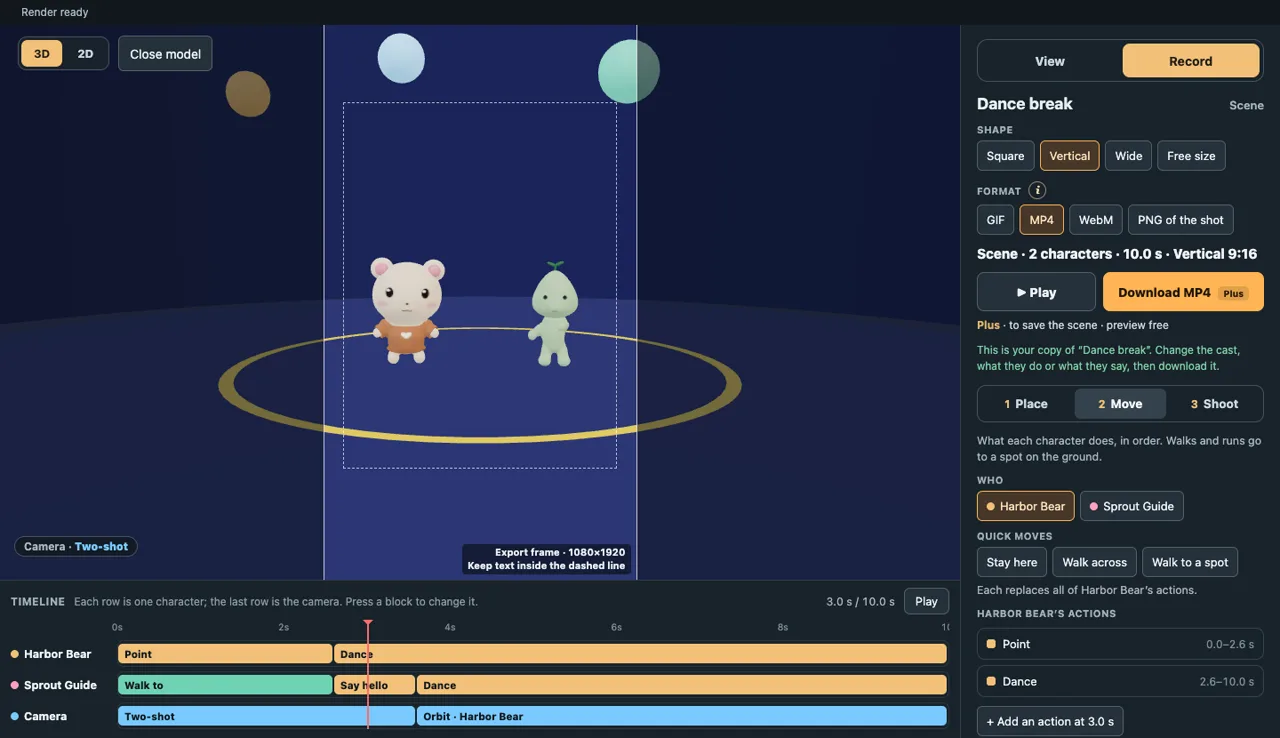
1. Put the scene in a vertical frame
On the animation examples page, choose Make your own on Hello, park. Under Shape in Record, select Vertical. The tall frame is the area that will appear in your clip.
2. Keep Mochi Bear in view on the way in
Click the first band on the Camera row. In Shoot choose Follow and select Mochi Bear under On. Click the start of the ruler and press Play. Pause as Mochi Bear reaches the middle of the park.
3. Check the hand and the greeting
Click Wave on Mochi Bear’s row and play through the wave and the line that follows. If the raised hand or the bubble touches an edge, click the Camera band for that moment on the timeline. Try Wide and play the moment again.
4. Save the vertical take
Leave Vertical selected. Choose MP4 under Format, replay from the start to check each cut, then choose Download MP4 to save the take.
Questions
Why is my preview still horizontal?
Under Shape select Vertical. Wide in the Shoot panel changes what the camera sees. Shape determines the proportions of the file.
Can I use the same scene for a landscape video?
Switch Shape to Wide, replay the walk and check the cuts in the wider frame before saving that version.