A Halcyone Maker field guide
Make a 3D character walk across a scene
Give Mochi Bear a destination you can see. A bench in the Park set makes it easy to tell whether the walk ends where you intended.
1. Start with a crossing
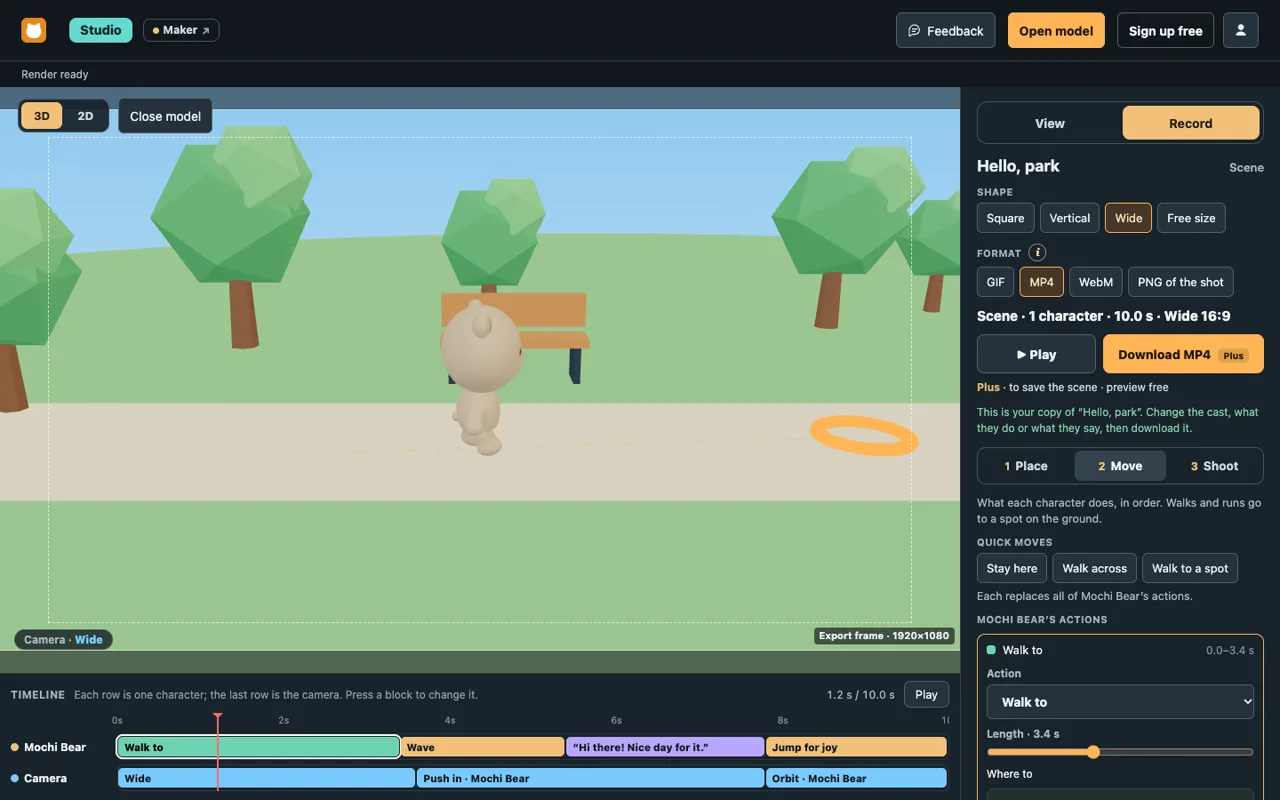
Open the Honey Bear sample. In Record → Move, choose Walk across under Make it a scene. The Timeline opens with Mochi Bear’s walk already in place. In Place, choose Park under Set. Press Play to see which side of the park the bear walks toward.
2. Move the end of the walk
Pause and click Walk to on Mochi Bear’s row. Drag the orange ring on the stage floor to a spot beside the bench. For a clearer view of the distance from front to back, drag the ring in the Where to map. Both rings set the same destination.
3. Set how long the crossing takes
Press Play and watch where the character stops. Pause and adjust Length on Walk to if the trip feels rushed. For a sprint over the same ground, change Action to Run to and preview the arrival again.
4. Check the walk from the camera
In Shoot, set the first camera band to Wide: it keeps the walker in the picture with the set around them. Try Follow and select the walker under On to travel with them. Click the ruler just before the end of Walk to and play through the stop.
Questions
Why is the destination ring missing?
Click the Walk to or Run to band on the walker’s row. A stationary action such as Wait has no destination.
How do I keep the walk but change the ending?
Click the action after Walk to and change its Action to Wave or Wait. Choosing Stay here, Walk across or Walk to a spot under Quick moves replaces that character’s whole sequence.