A Halcyone Maker field guide
Choose camera shots for a short 3D animation
In Meet you here, the camera follows Mochi Bear down the street, holds both friends for the greeting, then cuts to Clover Bunny for the reply.
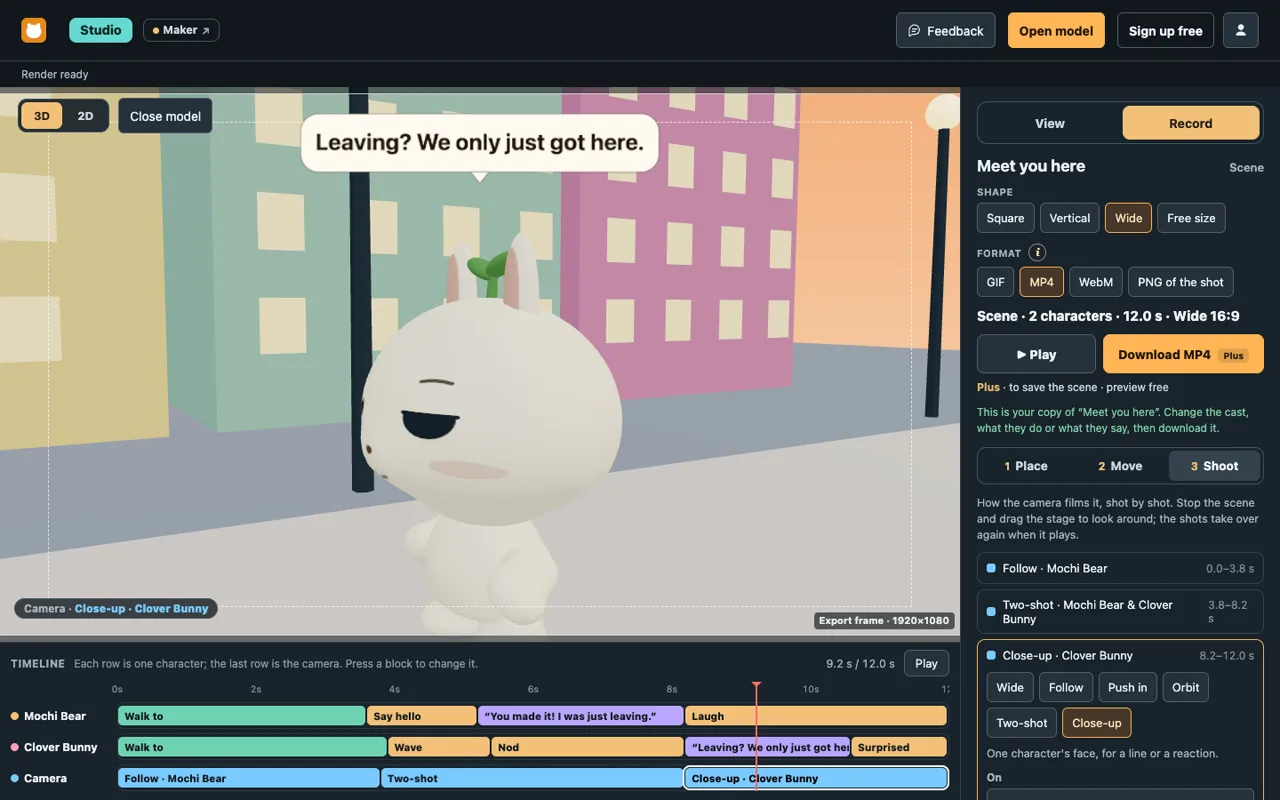
1. Follow the arrival
Open Meet you here with Make your own on the animation examples page. In Shoot, click the first band on the Camera row. Try Wide to show the street, then Follow with Mochi Bear under On. Press Play from the beginning to see how Follow travels with the walker.
2. Frame the greeting
Select the next Camera band and choose Two-shot. Under Between, choose Mochi Bear in the first selector and Clover Bunny in the second. Click near the middle of the band on the ruler to check the space between them once they have stopped.
3. Add a cut before the reply
Click the ruler inside the Two-shot, at 7.0 seconds, before Clover Bunny’s reply at 8.2. Press + Cut to a new shot at 7.0 s. Choose Close-up and set On to Clover Bunny. Play through the cut to see Clover Bunny listening before the speech bubble appears.
4. Try a moving camera on the reaction
Select that new Camera band again. Try Push in to move closer to Clover Bunny during the shot. Try Orbit to move around Clover Bunny and reveal the street behind them. Replay from the same point each time, then keep the shot that shows the reaction most clearly.
Questions
Why can’t I add a cut here?
Click the timeline ruler inside an existing shot, leaving a little room on both sides. At a boundary you can edit the shot that already starts there.
How do I see the recorded framing after dragging the stage?
Press Back to camera. Dragging the paused stage lets you inspect the set. The Camera row controls the framing during playback.