3D animation maker for YouTube and Shorts
Two friends cross a street. One waves. Cut to the other just as the reply appears. Build that scene in your browser with up to four characters, speech bubbles and a camera that moves with the cast.
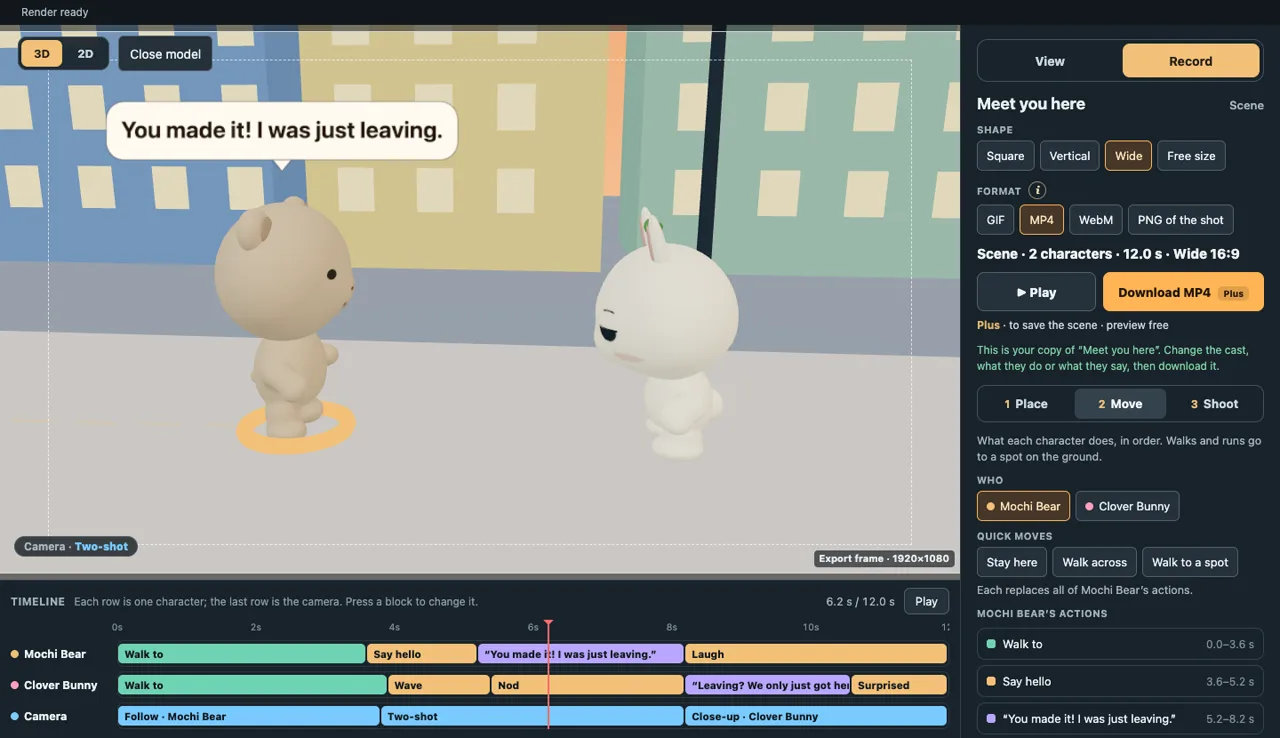
From an empty street to a conversation
Place the cast
Open the Honey Bear sample in Studio. In Record, open Place or Move and find Make it a scene. Choose Start a scene. The Timeline opens below the stage with a row for each character and Camera at the bottom. Mochi Bear leads because the sample has no walking animation.
In Place, choose Clover Bunny under Add a Halcyone character and check the pair in the cast list. Choose Street under Set for their meeting. You can also use Park, Stage or Background below. With Background below, use the Background slot under Your own files to choose a color, a scene, your own image or a background model.
Move the speakers into position
In Move, select Mochi Bear under Who and choose Walk to a spot under Quick moves. Open Walk to in Mochi Bear’s actions. Drag the ring on the Where to map, or the orange ring on the stage floor, to the meeting point. Select Clover Bunny under Who and repeat, choosing a spot a step away.
Open the action after Mochi Bear’s walk, choose Say, set Facing to Clover Bunny and type the question in Line. The speech bubble appears in the preview and the saved file. Set the action after Clover Bunny’s walk to Wait. To add that reply, click the Timeline ruler in the middle of the wait (3.5 s in a four-second scene) and use + Add an action at the displayed time. Choose Say and enter the answer. Mochi Bear’s last action lasts to the end of the scene, so add a Wait (or a Nod) to Mochi Bear at the same moment. That splits the question in two: open the part of the question after the Wait and choose Remove this action, so the question’s bubble ends as the reply begins.
Shoot the exchange
Click the first block on the Camera row to open it in Shoot. Choose Follow and set On to Mochi Bear. Click the ruler where the friends meet and choose + Cut to a new shot at the displayed time. Choose Two-shot and select the pair under Between. Add another cut for the reply and choose Close-up on Clover Bunny. Pause and drag the stage to look around, then choose Back to camera to see the framing again.
In Shoot, use Scene length to set the duration. Under Look, choose 3D or 2D: in 2D the characters get flat colours and ink outlines, and the set flat colours. The 3D and 2D switch by the stage does the same.
Your own GLB or VRM in a scene
Any GLB, glTF or VRM can lead a scene or join one as Second character under Your own files, next to Halcyone characters. Where it walks, who it faces, the camera, the set and the 2D look work the same for every character. What it can do comes from the animations in its file.
| Halcyone characters | Your own GLB, glTF or VRM | |
|---|---|---|
| Walk to, Run to | Their own walk and run | Walk to plays the file’s animation with walk in its name; Run to one with run, jog or sprint, or else the walk. Without one, it glides with its idle or chosen motion. A walk that moves the model forward by itself is kept on the path |
| Wait | Their idle | The file’s idle animation, or the motion chosen for it. Stay still holds it without moving |
| Gestures | Wave, Say hello, Nod, Point, Look around, Think, Laugh, Surprised, Sad, Jump for joy, Clap, Dance, Bow, Wave goodbye | Every animation in the file, listed as Motion · its name. It plays where the character stands: an animation made to move the model (an exit, a walk) plays in place, and Walk to or Run to takes the character somewhere |
| Say | The line in a speech bubble, with a talking gesture | The line in a speech bubble |
| Face | Expressions that are part of each motion | Moves when the file’s animations move it (blend shapes or bones). VRM expression presets are not played on their own yet |
There is no lip sync to a voice yet: the speech bubble carries the line, in the preview and in the saved video.
Put your VRM next to a Halcyone characterStart with a finished scene
In Meet you here, Mochi Bear and Clover Bunny arrive from opposite sides of the street. Choose Watch to see when the camera cuts to Clover Bunny. Choose Make your own to open the same scene in Studio and change the reply.
See the animation examplesWork on one part of your animation
Preview and save
Build and replay your scene for free, without an account. Choose MP4 for a wide YouTube video or a vertical Short. GIF and WebM are also available.
Saving a scene as MP4, GIF, WebM or PNG requires Plus ($12/month), including when you use the sample.
Compare plansQuestions about making a scene
Can I put my VRM next to a Halcyone character?
Yes. Open your GLB, glTF or VRM as the lead before starting a scene, then use Add a Halcyone character in Place. To join an existing cast, open your model under Your own files → Second character. Your model plays its own animations. With Walk to, a model without a walking animation glides to its destination.
How do I make two characters take turns speaking?
Choose Say on the first character’s row and type the question in Line. On the second row, use Wait before Say so the reply appears after the question, and where the reply starts, add a Wait to the first row, then remove the part of the question left after that Wait, so the question’s bubble ends as the reply begins. To replay it from either line, click the ruler there and press Play.
How do I shorten or remove an action?
In Move, open the action under the character’s name and adjust Length. The last action lasts to the end of the scene, so shorten the whole scene with Scene length in Shoot. If the character has more than one action, Remove this action deletes the selected one. To leave the scene and return to the regular Studio controls, choose Back to one motion.
Which shape should I use for YouTube?
Under Shape, choose Wide for a landscape video or Vertical for YouTube Shorts or TikTok. Square and Free size are also available. Play through the scene in your chosen shape to check that hands and speech bubbles fit.
Can my model use its own animations and expressions?
Yes, any GLB, glTF or VRM with animations. Every animation in your file appears in the Action menu as Motion · its name and plays where the character stands, and Walk to, Run to and Wait use the file’s walk, run and idle animations when their names say so. Faces move when your file’s animations move them. VRM expression presets are not played on their own yet, and there is no lip sync to a voice: Say shows the line in a speech bubble.
What can I do for free?
Opening a model, placing the cast, editing actions and previewing the scene are free without an account. Saving a scene as MP4, GIF, WebM or PNG requires Plus ($12/month), including when you use the sample.