A Halcyone Maker field guide
Open a GLB file online without uploading it or installing an app
A GLB file is a 3D model in the binary glTF format, usually packed into one file. To look at one you do not need a 3D editor: the GLB viewer reads the file inside your browser tab and draws it there. This guide walks through opening a file, looking around it and checking its animations.
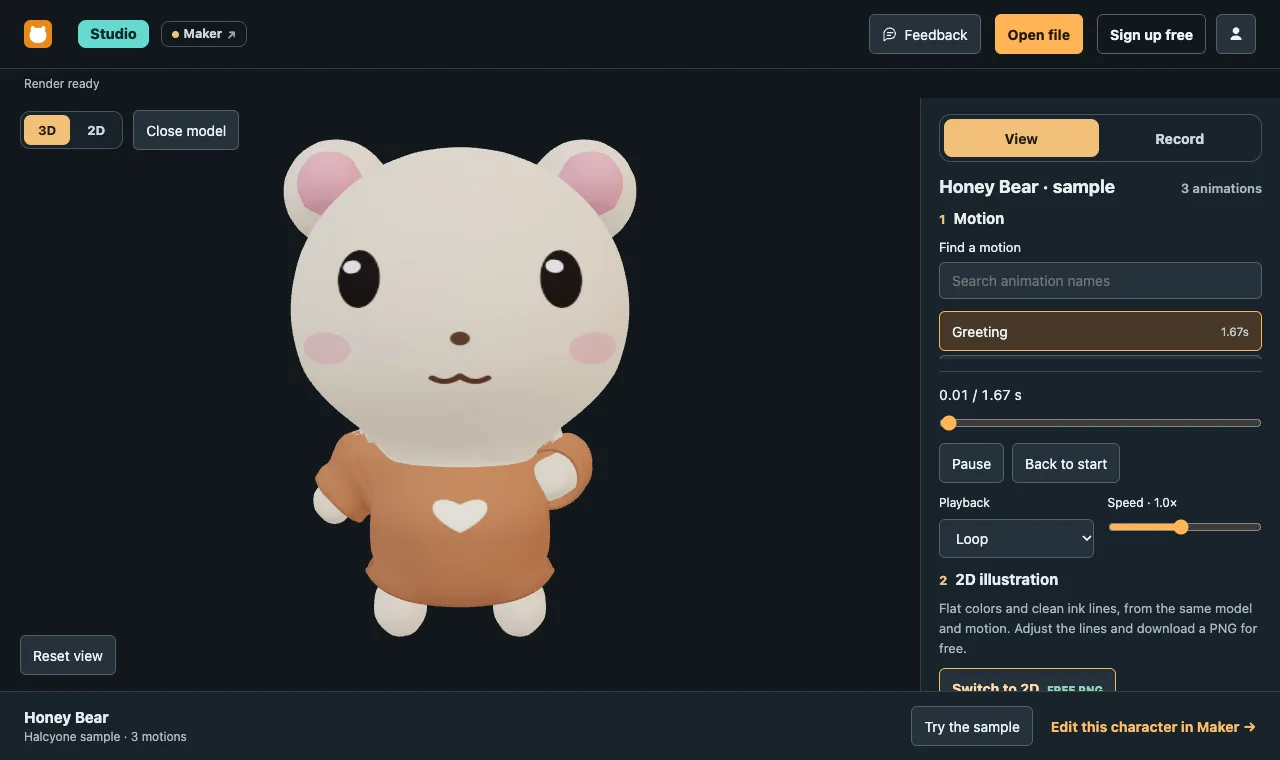
1. Open the file
Go to the GLB viewer and press Open a file, or drag the file onto the page. While you hold a file over the page it shows Drop to open. The viewer opens .glb, .gltf and .vrm files. With a model already on screen, Open model in the header replaces it.
A .glb usually holds everything in one file, and a .gltf usually comes with a .bin file and texture images. Either kind can refer to separate files. When yours does, choose them all together in the file dialog, drop the folder they are in, or open the ZIP they came in. Models compressed with Draco, Meshopt or KTX2 are decoded in the browser.
No model at hand? Try a sample opens Honey Bear, a Halcyone character with three motions, so you can see how the controls work first.
2. Rotate, zoom and pan
Drag to orbit the model, scroll to zoom and right-drag to pan. Turn it side-on to check the silhouette, or zoom in to see where a texture meets a seam.
Reset view on the preview fits the model in the view again. Close model, next to the file name, takes the model off the page.
3. Play the animations
The panel opens on the View tab. Under Motion, each animation in the file is listed with its length in seconds; on a narrow screen, expand Choose a motion to see the list. Type in Find a motion to filter the list by name; if nothing matches, the list says No matching animations.
Below the list, drag the timeline to any moment, press Pause or Play, or press Back to start. Playback switches between Loop and Play once, which shows where a motion ends. Speed runs from 0.1× to 2×.
If the file has no animations, the panel says so. You can still rotate and zoom the model, and choose One turn to see it spin, or Still to hold it.
4. See it as a 2D illustration
The 3D | 2D switch on the preview redraws the same model in flat colors with ink lines, with its animation still playing. Line sets the line weight, Inner sets the lines inside the model, and Color chooses Ink, Parts or Custom.
With 2D selected, Download 2D PNG · Free saves a PNG rendered at 1024 or 2048 pixels on a transparent, white or colored background. A transparent PNG is then trimmed to the model. The guide to transparent PNGs covers this step in detail.
5. Go on to a GIF or video
Open the Record tab with the model still on screen. The motion and speed you chose come along. Pick a shape and a background, check the shot in the preview, and choose GIF, MP4, WebM or PNG of the shot. Previewing is free; saving one of these files of your own model requires Plus.
If the file does not open
The viewer names what went wrong above the preview. A glTF that needs files that were not included: choose the .gltf together with its .bin and texture files, drop the whole folder, or open the original ZIP.
A model that links to textures on the web: the viewer never downloads web addresses, and it refuses such a model even when the same pictures are chosen with it. Download the textures, change the model's references to relative local paths and open the files together, or export a GLB with the textures embedded.
An FBX, OBJ, USD, STL or Blender file: the viewer says which it is. Open it in a 3D editor and export it as glTF 2.0; in Blender that is File › Export › glTF 2.0 (.glb/.gltf), with the format set to glTF Binary (.glb).
A message about 3D rendering: the viewer needs a browser with WebGL 2. Turn on hardware acceleration, close other 3D tabs, or try a smaller model. A large model can exceed the memory of a phone.
What is free, and where the file goes
Opening a model, viewing it, playing its animations and the 2D PNG are free and need no account. Saving a GIF, MP4, WebM or PNG of the shot from the Record tab requires Plus ($12/month or $115.20/year).
The model file is read and drawn by your browser on your device and is not uploaded. The site records usage events, such as the file type and a size range, but not the model itself. If you reload the tab, the viewer tries to reopen the model from a copy your browser keeps on the device; if the model is missing, open the original file again.
Questions
Do I need to install anything to open a GLB file?
No. The GLB viewer runs in a browser with WebGL 2. Open the page, then choose or drop the file.
Is my GLB file uploaded when I view it online?
No. The file is read and drawn locally in your browser. Web addresses inside a model are never downloaded either.
Can I open a glTF with separate .bin and texture files?
Yes. Choose the .gltf together with its .bin and texture files, drop the folder that holds them, or open the ZIP they came in.
Can I view a GLB on a phone?
The controls adapt to narrow screens. A browser with WebGL 2 is required, and a large model may exceed a phone's memory or graphics limits.