A Halcyone Maker field guide
Record two 3D characters and a background model in one shot
One model on an empty stage is enough for a turntable. A scene needs more: a second character to react, a room or a prop behind them. The Place step of GLB Studio adds up to two more models to the one you opened and records them together.
1. Open the lead model
Open a GLB, glTF or VRM in GLB Studio. This first model is the lead, shown in the Character slot: Single, Sequence and One turn in the Move step act on it, and the camera is fitted to it.
Stay in the 3D look. Added models are shown in 3D only; with the 2D look selected they are hidden and the Studio says Added models show in 3D.
2. Add a second character
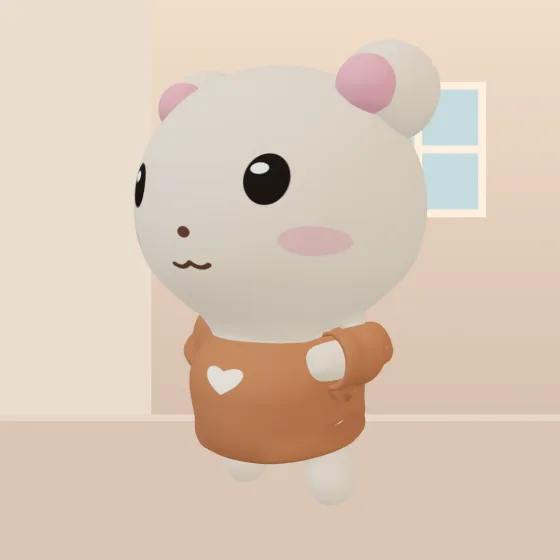
Open Place, the first step of the Record tab. In the Second character slot press Add, then Choose file to pick a model from your device, or Sample to add Honey Bear.
The new character stands beside the lead at the same height and loops its first animation. The camera is fitted again so that both characters are in the frame.
You can add one character and one background model, two extra models in all.
3. Add a background model
In the Background slot press Change, then Add background model, and choose a file: a room, a piece of terrain, a prop. It is placed behind the lead, larger than the characters, and it does not move unless you give it a motion.
The background model is not used to fit the camera, so a large set does not push the characters into the distance.
4. Place, size and turn each model
Each added model is placed from its own slot: press Adjust in the Second character slot, or Change in the Background slot for the background model. Move X slides it sideways, Height raises or lowers it, and Depth moves it forward or back.
Size scales it from 0.05× to 5×, and Turn rotates it from −180° to 180°. If the model has animations, the Move step lists it by name, with a motion to choose or None to hold it still. Remove takes the model off the stage.
Reset view on the preview fits the lead and the added character in the frame again. The lead itself is placed with the camera: drag, scroll, or use More angle options.
5. Set the background, light and shadow
The background and the shot apply to the whole stage: the background tiles, the scenes under More and Your image in the Background slot, and the Light row and the Angle row in the Shoot step. Shadow, in the Place step, puts a floor shadow under the lead and the added character.
With One turn on, only the lead rotates; the other models stay where you placed them.
6. Preview and download
The stage plays in the preview; use Pause and Play to inspect it. In the saved file the added models run on the same clock as the lead. They are included in every format: GIF, MP4, WebM and PNG of the shot, with a single motion, a sequence or one turn.
Choose the format and press the Download button. Saving a shot of your own models requires Plus ($12/month or $115.20/year); building and previewing the stage is free.
If the stage is not right
Choose an added model up to 100 MiB: one added model can be at most 100 MiB.
The stage must fit within 250 MiB: the lead, the added models and a background picture together are limited to 250 MiB. Choose a smaller file.
An added character leaves the frame while it moves: Reset view fits the cast again using sampled poses of its motion. If a wide movement still falls outside the frame, lower its Size, shift it with Move X, or zoom the camera out.
The added models disappeared: the look is 2D. Switch back to 3D.
Model unavailable. Reload to retry: the model could not be brought back. Reload the tab, or remove it and add the file again.
Formats, and what is free
Lead and added models: GLB, glTF 2.0 and VRM, chosen from your device, plus the built-in sample. All of them are processed in your browser and none is uploaded. After a reload the Studio tries to restore the stage from a local copy; if a model is missing, open the original file again.
Opening models, arranging the stage and previewing are free with no account. Saving GIF, MP4, WebM or PNG of the shot requires Plus. A character you are editing in Halcyone Maker cannot be placed on this stage directly; download it as a GLB and add that file.
Questions
How many models can I record together?
Three: the model you opened, one added character and one added background model.
Can the second character have its own animation?
Yes. It starts on its first animation, and Motion in its row switches to another one or to None.
Can I use a 3D room or environment as the background?
Yes. In the Background slot press Change, then Add background model, and choose a GLB, glTF or VRM file. It is placed behind the lead and can be moved, sized and turned.
Do the added models work in the 2D look?
No. Added models are shown in the 3D look only.