A Halcyone Maker field guide
Convert a GLB or glTF animation to a GIF in your browser
A GIF is the simplest way to show a 3D animation where a model viewer is not available: a store page, a README, a chat. GLB Studio plays the animation stored in your file and renders it to a GIF frame by frame, in your browser.
1. Open the model in GLB Studio
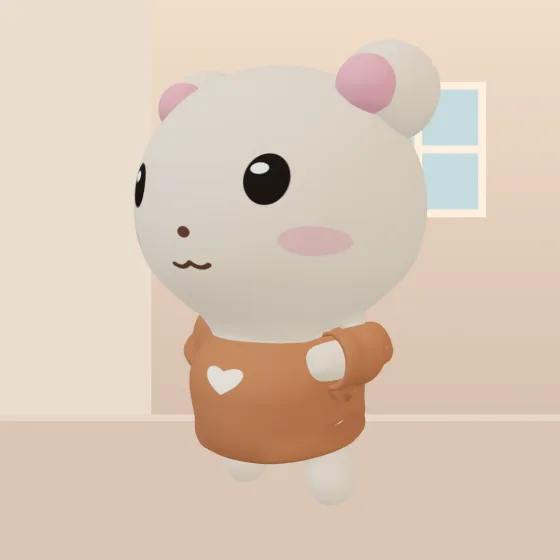
Go to GLB Studio and press Choose a file, or drag the model onto the page. GLB, glTF and VRM files open; a glTF with separate files opens when you choose the files together, drop the folder or open the ZIP. Try the sample opens Honey Bear if you want to practice first.
The panel opens on the Record tab. Shape, Format, the Pause or Play button and the Download button are in reach whichever step is open; the three steps are Place, Move and Shoot.
2. Choose the motion
Open the Move step. With Single selected, pick the animation from the list and set Speed between 0.1× and 2×. A single motion plays as soon as the model opens; use Pause and Play to inspect it.
To join several animations, choose Sequence and use + Add motion to place them in playing order, up to 24 steps. Each motion plays through once. Press Play to preview the steps in order, and press a step to remove it.
A model with no animations shows Still and One turn here instead. One turn spins the model once over the length of the take, so the GIF moves.
3. Set the shape and background
Shape offers Square, Vertical, Wide and Free size. For the first three, a frame labeled Export frame is drawn on the preview with its size; only what is inside it is saved. Free size saves the whole preview.
In the Place step, press Change in the Background slot to pick a background. A GIF pixel is either clear or opaque, so a transparent GIF loses its soft edges. For a clean result choose White, Black, Solid color or a scene under More. In the Shoot step, the Shot row sets shape, background, light and angle together; Model showcase, for example, is a square three-quarter view with one slow turn.
4. Set the length
Open the Shoot step. Length offers 2s, 4s and 6s, and Full motion, which records one pass of the selected animation at the current speed. Full motion is offered only when the model has animations. Use it when the animation is a loop, so the GIF ends where it began.
A sequence has no length setting: it lasts as long as its motions at the chosen speed, and at least half a second. With a single animation you can also start From where it is now, after pausing on a pose, in place of From the first frame.
5. Pick the GIF size and smoothness
With GIF selected under Format, two more rows appear. Size is Small · 480px or Large · 720px. Small uses up to 480 pixels on the long side and keeps a smaller Free size preview at its own size. Large uses 720 pixels on the long side. Smoothness is Standard · 12 fps or Smooth · 20 fps.
Larger and smoother GIFs take longer to save and make bigger files, and the longest take depends on the setting: 30 seconds at Small and Standard, 18 seconds at Small and Smooth, 13 seconds at Large and Standard, and 8 seconds at Large and Smooth. Past the limit the Studio asks you to shorten the take or lower the quality.
6. Download the GIF
Press Download GIF. A progress bar replaces the buttons, with Cancel beside it. The GIF is rendered frame by frame from the start of the take, so it matches the preview.
Saving requires Plus ($12/month or $115.20/year). Without it, the button opens a card headed Export with Plus · $12/month, with Get Plus and See plans, and Sign in if you are signed out. The Studio keeps your model in the browser during sign-up or checkout and tries to reopen it when you return; if it does not appear, open the original files again.
If the GIF is not right
Rough edges around the model: the background is Transparent. Choose a solid background or a scene.
No floor shadow: Shadow is left out of transparent GIFs, and it is available in the 3D look only.
The model is cut off: check the Export frame on the preview. Drag to orbit, scroll to zoom, or open More angle options and use Zoom, Move X and Move Y. Reset view fits the model again.
The file is too heavy: choose Small and Standard, or a shorter length.
Formats, and what is free
Input: GLB, glTF 2.0 and VRM, including Draco, Meshopt and KTX2 compressed models. FBX, OBJ, USD and Blender files do not open here; export them as GLB, or as glTF 2.0 with its files, first.
Opening the model, choosing motions and previewing the shot are free with no account. Saving the GIF of your own model requires Plus. The model is processed in your browser and is not uploaded.
Questions
How do I make a looping GIF from a GLB animation?
In GLB Studio, select the animation in the Move step, open the Shoot step and choose Full motion, which is offered for models with animations. The GIF then covers one pass of the animation at the chosen speed.
What size is the GIF?
Small uses up to 480 pixels on the long side and keeps a smaller Free size preview at its own size. Large uses 720 pixels on the long side. Both follow the shape you picked.
Can the GIF have a transparent background?
Yes, but GIF keeps only on/off transparency, so soft edges are lost and the floor shadow is left out. A solid background usually looks cleaner.
Is converting a GLB to a GIF free?
Opening the model and previewing the shot are free. Saving the GIF of your own model requires Plus, $12/month.